Using Amazon Macie with Komprise for Detecting Sensitive Content in On-Premises Data
Create a free account to apply in seconds
AWS Partner Network (APN) Blog
Using Amazon Macie with Komprise for Detecting Sensitive Content in On-Premises Data
By Mike Peercy, Chief Technology Officer – Komprise
By Girish Chanchlani, Sr. Partner Solutions Architect – AWS
Komprise
As unstructured data continues to grow across on-premises data centers and the cloud, businesses are finding it a challenge to determine what data is of higher value. One such example is trying to find sensitive content containing personally identifiable information (PII) in these vast repositories. Can you easily identify, tag, and manage sensitive data at scale?
PII could be present within a small subset of the billions of files under management at an enterprise. Searching for PII data in the entire dataset is a challenge; you need a simpler way to isolate datasets that could contain PII data, find PII data in that reduced subset, and then apply policies to safeguard this data.
For example, in a vast data repository containing files from multiple teams in an organization, there are higher chances of PII data being present in documents maintained by HR or finance teams. Once you isolate the dataset, you need a way to easily figure out which files contain sensitive information and then act on those files.
Actions could include enforcing stringent access policies for these sensitive files, making sure they cannot be deleted until they have met the retention policies of your organization, thus ensuring compliance with data residency requirements such as GDPR, CCPA, and others.
Komprise, an AWS Partner with the Migration and Modernization Competency, provides intelligent data mobility and management solutions to help you manage and derive value from your unstructured data spread across on-premises and cloud environments.
From a single pane of glass in Komprise, you can gain visibility across your data silos, tag files with granular metadata to support easier search for precise data sets, and create intelligent policies to migrate infrequently used data to economical storage targets and/or leverage cloud-based artificial intelligence (AI) and machine learning (ML) services.
In this post, we will walk you through the process of using Komprise with Amazon Macie, a fully managed data security and data privacy service that uses machine learning and pattern matching to discover sensitive content such as PII.
We will then tag those files in Komprise so users can easily discover them with the Komprise Global File Index. Then, we’ll move these sensitive files to a separate Amazon Simple Storage Service (Amazon S3) bucket that has S3 object lock enabled to ensure sensitive files are protected from deletion unless they have met the data retention requirements.
Using Komprise with Amazon Macie for PII Detection
Let’s see how easy it is to automate the series of steps using Komprise Smart Data Workflows to search for HR data across disparate on-premises file storage environments, and then curate this data to AWS and use Amazon Macie to search for sensitive content and take the appropriate action on it.
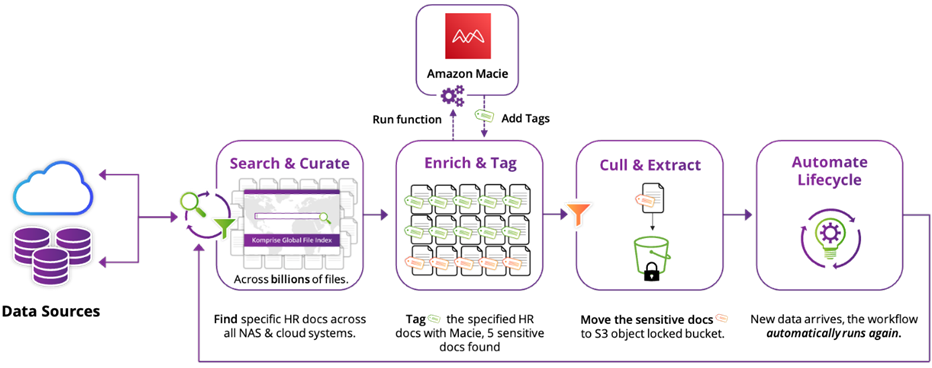
Figure 1 – High-level overview of Komprise workflow.
The high-level workflow in Komprise includes the following steps:
• Search and curate: Create a Komprise Deep Analytics Actions (DAA) query to find your dataset. This query can access data from a single share or many shares across multiple Network Attached Storage (NAS) systems presented by the Network File System (NFS) protocol, the Server Message Block (SMB) protocol, or both. For example, your DAA query could be to find all files created by HR in the last five years; this may be a few thousand files across billions.
• Enrich and tag: Komprise will systematically replicate the selected dataset to an Amazon S3 bucket. This dataset is analyzed by Amazon Macie, and sensitive files containing PII information are tagged in Komprise. In this example, Amazon Macie may find several hundred files from HR data set that contain PII.
• Execute: Create a new Komprise query based on these new tags and you can quickly find and act on this subset of files. Here, the action is moving sensitive data to an Amazon S3 bucket with S3 object lock enabled.
• Automate lifecycle: As new data is created or added to Komprise, the process repeats automatically, where new files are automatically moved to S3 for analysis by Amazon Macie and tagged in Komprise.
Let’s look at these steps in detail.
Step 1: Search and Curate to Narrow the List of Files to Analyze
We want to analyze a specific dataset to find sensitive files. To find this data, we create a Komprise Deep Analytics Query.
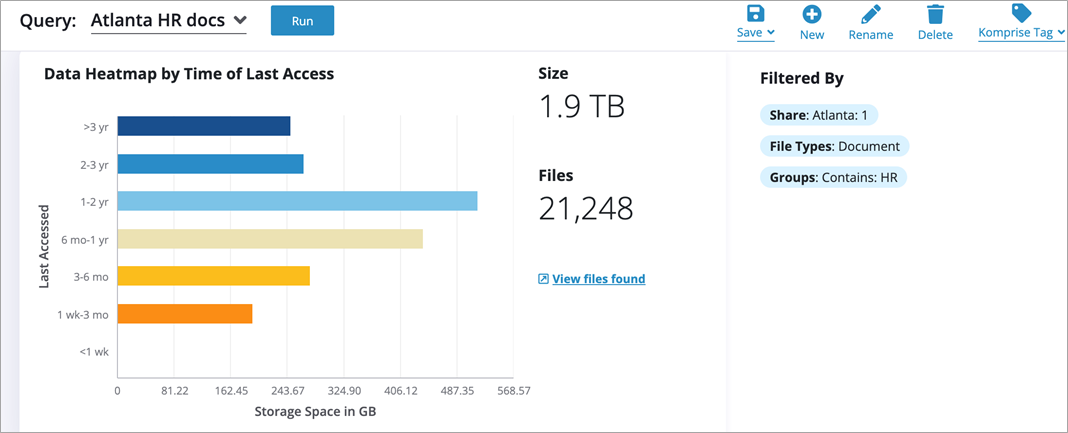
Figure 2 – Komprise Deep Analytics Query to narrow down files to analyze.
The query operates on the Komprise Global File Index with the following filters:
• Shares: Atlanta
• File types: Document
• Groups: HR
As shown in the figure above, 21,248 files match this query. We save and name the query as “Atlanta HR docs.”
Step 2: Enrich and Tag Sensitive Files
Step 2.1 – Copy the selected data set to S3 for PII analysis by Amazon Macie
This data resides in an on-premises data center. For analysis by Amazon Macie, we create a Komprise Plan to copy to Amazon S3.
First, add an S3 bucket to Komprise as a storage target.

Figure 3 – Add a cloud storage target in Komprise.
Next, create a Komprise Data Management Plan to copy the data based on the query to the S3 bucket from Step 1.
• Create a new Komprise Plan “DAA Demo.” Optionally, you may add a group to an existing Komprise Plan.
• Create a new group “Atlanta HR Docs.”
• Select the “Copy” feature.
• Select “Atlanta HR docs” DAA Query as the source.
• Select the target S3 bucket “AWS/Komprise-tag-demo.”
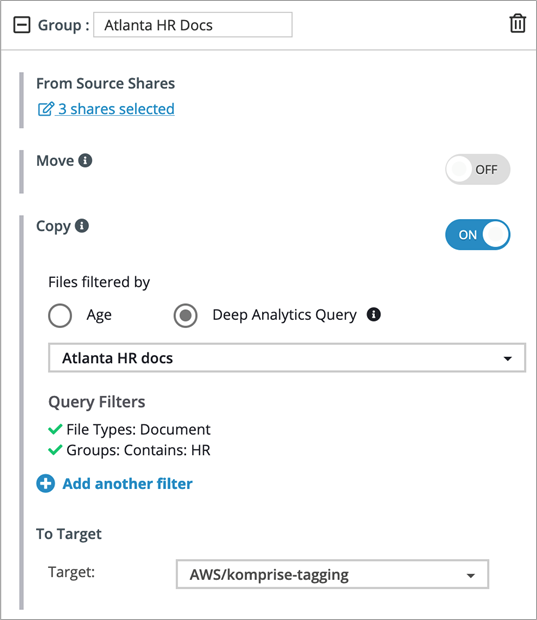
Figure 4 – Komprise Plan to copy objects to Amazon S3.
Note that this policy is automated; any time a file appears matching the filter, on these specific shares, the data will automatically replicate to the target S3 bucket.
Activate your plan and verify your files have been copied to S3 via the Komprise console, or by viewing the contents of your target S3 bucket.